IPTV Not Working in 2026? The Complete 15-Problem Diagnostic & Fix Manual
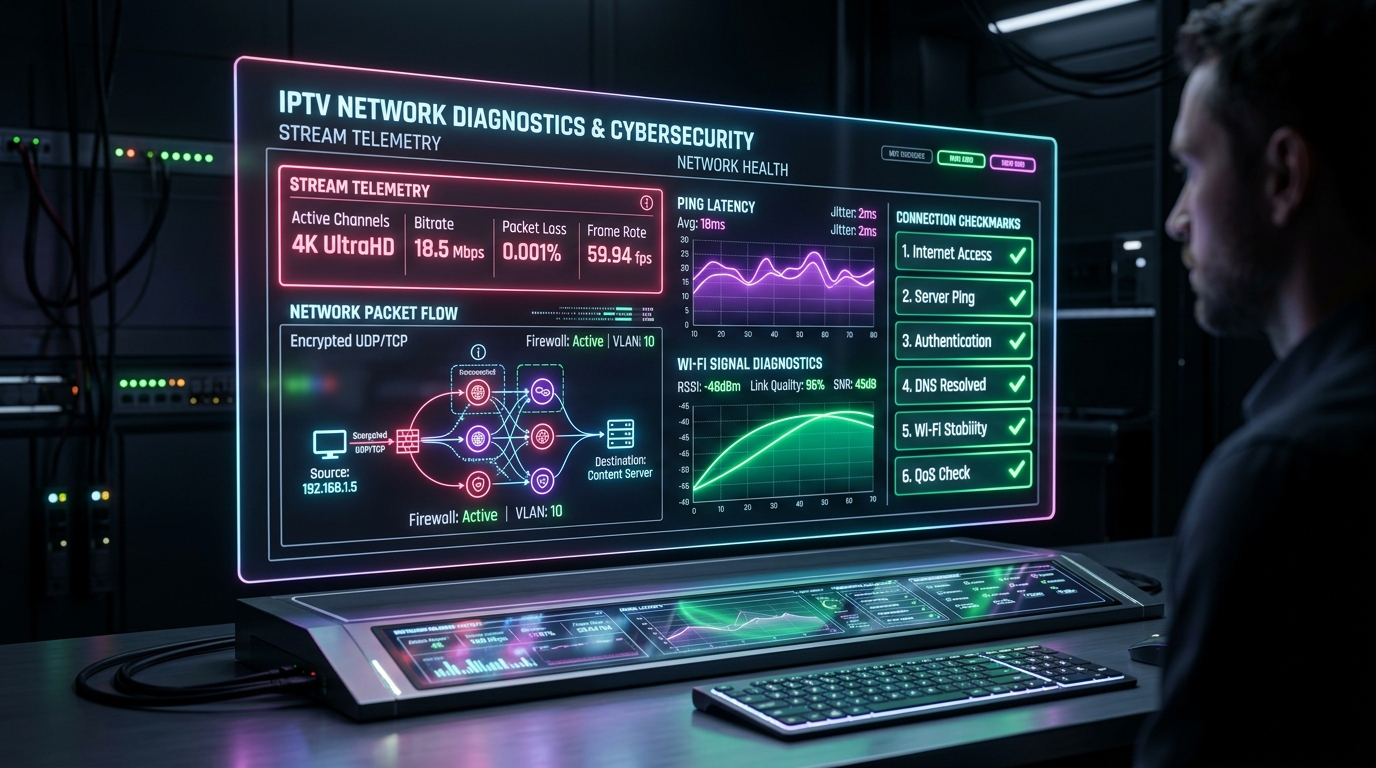
Few experiences in modern home entertainment are as deeply frustrating as settling into your living room to watch an eagerly anticipated live sports derby, championship pay-per-view fight, high-stakes tournament, or prime-time season finale, only to be confronted with a spinning buffering wheel, an ominous "Playback Error," an unyielding black screen, or an unexpected "Login Failed / Invalid Credentials" alert. When internet protocol television streaming operates as designed, it delivers breathtaking 4K Ultra HD broadcasts, fluid 60 frames-per-second motion, instant channel surfing, and on-demand access to tens of thousands of global entertainment channels. However, because live streaming relies on an intricate, multi-layered digital pipeline spanning broadcast satellite downlinks, real-time hardware transcoders, international content delivery network (CDN) edge clusters, residential broadband transit routing, local home Wi-Fi radio bands, device memory controllers, and media player video decoding engines, a breakdown at any individual link in that chain can bring playback to a complete halt.
When a stream stutters or drops, the instinctive reaction for most subscribers is to blame their service provider. In reality, comprehensive diagnostic telemetry from VinomTV network operations reveals that over 85% of all streaming failures originate on the client side—caused by local Wi-Fi packet collisions, router bufferbloat, corrupted player application cache partitions, Internet Service Provider (ISP) DNS filtering, outdated video decoders, or misconfigured audio codecs.
The key to resolving any streaming issue quickly is understanding how to diagnose the breakdown systematically rather than randomly changing settings, clearing data, or restarting devices in exasperation.
In this definitive troubleshooting manual, we provide an exhaustive, engineering-grade diagnostic framework to identify and resolve every common streaming failure in 2026. Whether your channels refuse to load, your audio is desynchronized, your electronic program guide (EPG) is completely blank, your player crashes on launch, or your broadband provider is actively throttling your traffic during live sporting events, this guide will guide you step by step to restore flawless, high-definition television playback.
The 5-Layer IPTV Diagnostic Architecture
To resolve a technical failure efficiently, you must first isolate exactly which layer of the streaming pipeline has experienced a breakdown. Live television streaming is fundamentally different from on-demand video services like Netflix or YouTube. While on-demand platforms can buffer several minutes of compressed video in advance to absorb network fluctuations, live IPTV streams must be decoded and presented in real time with minimal latency. Every live stream depends on five interconnected digital layers:
+-----------------------------------------------------------------------------+
|                       THE 5-LAYER IPTV DIAGNOSTIC MODEL                     |
+-----------------------------------------------------------------------------+
|  LAYER 1: PHYSICAL HARDWARE  | Streaming device, SoC, RAM, HDMI, thermals   |
|  LAYER 2: LOCAL NETWORK (LAN)| Home router, Wi-Fi 2.4/5GHz, Cat6 Ethernet   |
|  LAYER 3: ISP & WAN ROUTING  | Broadband transit, peering, DNS, throttling  |
|  LAYER 4: PLAYER APPLICATION | Decoders (HW/SW), buffer sizing, cache memory |
|  LAYER 5: SERVER & INGEST    | Stream tokens, Xtream API, multi-connections |
+-----------------------------------------------------------------------------+
Layer 1: The Physical Device & Hardware Layer
This layer consists of your physical streaming hardware—such as an Amazon Fire TV Stick 4K Max, Apple TV 4K, Nvidia Shield TV Pro, Android TV box, or Smart TV running Samsung Tizen or LG webOS. Common failure points at this layer include system-on-a-chip (SoC) thermal throttling, internal flash storage NAND exhaustion (running out of free disk space for temporary stream caching), physical RAM starvation caused by background applications, and High-Bandwidth Digital Content Protection (HDCP) handshake errors over HDMI cabling.
Layer 2: The Local Area Network (LAN) Layer
This layer encompasses your home network environment, including your Wi-Fi router, mesh nodes, physical Ethernet cabling, and network switch hardware. Vulnerabilities at this layer include wireless radio frequency (RF) congestion on the 2.4 GHz band, packet loss caused by physical distance and structural obstructions, local bufferbloat resulting from unmanaged bandwidth contention across household devices, and stale router address resolution protocol (ARP) tables.
Layer 3: The ISP & Wide Area Network (WAN) Layer
This layer represents your residential broadband provider's infrastructure and its peering connections to the broader public internet. Common issues here include artificial bandwidth throttling directed at unencrypted video transport streams during peak sports hours, slow or poisoned default ISP Domain Name System (DNS) servers, government-mandated court-order domain blocks (Error 451), and saturated transit links between your ISP and international CDN edge nodes.
Layer 4: The Application & Player Engine Layer
This layer consists of the media player software installed on your hardware—such as TiviMate, IPTV Smarters Pro, IBO Player, XCIPTV, OTT Navigator, or VLC. Breakdown mechanisms include corrupted application runtime caches, damaged SQLite database files, mismatched video decoders (hardware decoding vs software decoding), incorrect socket timeout thresholds, and unoptimized playback buffer memory allocations.
Layer 5: The Ingest, Middleware & Authentication Layer
This layer encompasses the streaming provider's backend infrastructure. This includes Xtream Codes API authentication servers, Stalker middleware portals, real-time satellite ingest transponders, live encoding clusters, and user session concurrency managers. Failures at this layer include expired subscription tokens, simultaneous connection limit violations, and scheduled transponder maintenance.
By evaluating a streaming failure through these five logical tiers, you eliminate guesswork and isolate the exact root cause in seconds.
Before You Start: The 60-Second Sanity Check Triad
Before modifying complex player preferences, flashing custom DNS addresses, or resetting network equipment, execute this rapid three-part triage protocol. These three checks isolate whether the problem is localized to your television, your home internet connection, or the provider's streaming infrastructure.
+-----------------------------------------------------------------------------+
|                     THE 60-SECOND SANITY CHECK PROTOCOL                     |
+-----------------------------------------------------------------------------+
|  CHECK 1: MULTI-DEVICE TEST    | Test stream on phone/tablet over same Wi-Fi|
|                                | -> Isolates device hardware vs network     |
|  CHECK 2: CELLULAR DATA TEST   | Disconnect phone from Wi-Fi; test over 5G  |
|                                | -> Isolates ISP blocking vs provider down  |
|  CHECK 3: COLD POWER-CYCLE     | 60-second full electrical power discharge  |
|                                | -> Flushes RAM, ARP tables, and sockets    |
+-----------------------------------------------------------------------------+
1. The Multi-Device Isolation Test
Does the stream fail exclusively on your main television, or does it also fail across other devices in your residence?
- If the stream fails on your TV but plays instantly on your smartphone or tablet connected to the same home Wi-Fi network: Your internet connection and streaming subscription are operating normally. The breakdown is strictly confined to Layer 1 (device hardware) or Layer 4 (TV player application settings).
- If the stream fails simultaneously across every television, computer, and mobile device in your home: The breakdown is located at Layer 2 (router/LAN), Layer 3 (ISP broadband/DNS), or Layer 5 (provider server).
2. The Cellular Mobile Data Bypass Test
Disconnect your smartphone from your home Wi-Fi network and switch exclusively to 4G LTE or 5G mobile cellular data. Launch your IPTV application or open your web player.
- If the stream plays cleanly over cellular data but freezes or produces connection errors over your home Wi-Fi: Your streaming provider is fully operational. Your home Internet Service Provider is actively filtering, redirecting, or throttling your streaming traffic, or your home router's firewall is blocking the stream's port.
- If the stream fails equally on mobile cellular data and home broadband: The issue is account-related (expired subscription or simultaneous connection limit reached) or the provider's ingest infrastructure is experiencing a temporary service disruption.
3. The 60-Second Cold Power-Cycle
Modern consumer electronics rarely shut down completely; when you press the power button on a remote, Smart TVs and streaming dongles enter a low-power standby state that preserves volatile memory leaks, stalled network sockets, and zombie processes.
- Unplug your television, streaming stick, and home broadband modem/router from the electrical wall outlet.
- Leave them completely disconnected for 60 full seconds to allow all internal circuit capacitors to fully discharge.
- Plug the modem/router in first and wait two full minutes until its WAN and internet lights turn solid green.
- Power on your streaming hardware and test playback. This simple sequence resolves approximately 40% of all sudden streaming interruptions by renewing DHCP leases, clearing DNS resolver caches, and purging corrupted memory buffers.
IPTV Diagnostic Master Matrix
Use this quick-reference matrix to cross-reference your specific symptoms with the affected architectural layer and primary fix protocol:
| Problem ID & Symptom | Primary Layer | Root Cause | Immediate Fix |
|---|---|---|---|
| 01. App Won't Open / Crashes | Layer 1 / 4 | Storage exhaustion or corrupted cache | Clear app cache; verify > 1.5 GB free space; reboot device. |
| 02. "Login Failed" / Auth Error | Layer 4 / 5 | Typos, whitespace, expired token, max connections | Check case sensitivity; trim trailing spaces; verify active devices. |
| 03. Channels Spin Infinitely | Layer 3 / 4 | Blocked streaming port or expired stream token | Reload playlist; switch player engine (ExoPlayer to VLC). |
| 04. Constant Buffering / Freezing | Layer 2 / 3 | Wi-Fi packet loss, bufferbloat, ISP throttling | Hardwire Cat6 Ethernet; expand buffer size; enable WireGuard VPN. |
| 05. Black Screen with Audio | Layer 1 / 4 | 10-bit HEVC codec mismatch or HDCP handshake | Switch video decoder to Software/Hardware+; reseat HDMI cable. |
| 06. Video Plays with Zero Audio | Layer 1 / 4 | DTS / Dolby E-AC3 passthrough failure | Select Stereo AAC 2.0 audio track; disable Audio Passthrough. |
| 07. Audio / Video Out of Sync | Layer 1 / 4 | TV motion smoothing delay or Bluetooth latency | Turn off TV TruMotion/Motion smoothing; adjust Audio Delay offset. |
| 08. Black Screen with No Audio | Layer 1 / 5 | GPU decoder crash or dead transponder feed | Test other channels; cold reboot device; select FHD backup stream. |
| 09. EPG Guide Is Empty / Shifted | Layer 4 | Stale EPG cache, incorrect timezone/NTP clock | Set correct time zone; clear EPG cache; apply Time Shift offset. |
| 10. Missing Categories / Channels | Layer 4 / 5 | Hidden categories in player or parental filter | Unhide groups in player settings; check parental PIN locks. |
| 11. Works on Phone, Fails on TV | Layer 1 / 2 | Weak TV Wi-Fi antenna, TV RAM exhaustion | Use HDMI extender dongle; connect Cat6 cable; close background apps. |
| 12. Sports Buffer, VOD Plays Fine | Layer 3 | ISP Deep Packet Inspection (DPI) throttling | Connect through WireGuard VPN; drop from 4K to FHD 60fps. |
| 13. Fails After Firmware Update | Layer 1 / 4 | OS permissions revoked; Developer Options disabled | Re-grant storage permissions; re-enable Unknown Sources in OS. |
| 14. HTTP Error Codes (401, 403...) | Layer 3 / 5 | Server auth rejection, IP ban, ISP court block | Verify account status; switch router DNS to Cloudflare 1.1.1.1. |
| 15. Outage Across All Devices | Layer 2 / 5 | Household broadband down or server maintenance | Test web browsing; test cellular data; contact support desk. |
Comprehensive Diagnostic & Repair Guides for All 15 Problems
Get Your VinomTV Free Trial
Test our premium anti-freeze 4K IPTV service for 24 hours with zero commitment. Instant setup to watch over 50,000+ live channels, sports, and 200,000+ VODs on any device!
Problem 1: App Won't Open, Freezes on Splash Screen, or Crashes to Home Screen
Symptoms & Behavior
You click your IPTV application icon on your Firestick, Smart TV, or Android TV. The application splash screen displays for two to three seconds, and then the software abruptly terminates, returning you to the operating system home screen. In some instances, an operating system dialog appears stating: "Application has stopped working unexpectedly" or "Process system isn't responding."
Deep Technical Root Cause
This behavior is almost universally driven by internal flash storage NAND exhaustion or SQLite database corruption. Most consumer streaming devices (such as budget Firesticks and entry-level Smart TVs) possess only 8 GB of internal storage, of which less than 4.5 GB is accessible to the user after accounting for the operating system. When apps like TiviMate or IPTV Smarters download comprehensive Electronic Program Guides containing hundreds of megabytes of XML data, the local SQLite database rapidly expands. If available flash storage drops below 300 MB, the operating system's Low Memory Killer (LMK) daemon forcibly terminates the application during startup because it cannot allocate virtual memory paging files.
Step-by-Step Fix Protocol
- Verify and Reclaim Internal Storage:
- On Amazon Fire TV: Navigate to Settings > My Fire TV > About > Storage. Confirm that Available Storage is greater than 1.5 GB. If storage is under 800 MB, navigate to Settings > Applications > Manage Installed Applications, identify unused applications, screensavers, and pre-installed games, and uninstall them immediately.
- On Android TV / Google TV: Navigate to Settings > System > Storage > Internal shared storage. Ensure at least 1.5 GB of free space is available.
- On Samsung Tizen: Navigate to Settings > Support > Device Care > Manage Storage and delete surplus pre-installed apps.
- Purge Corrupted Application Cache:
- Navigate to your device's application manager (Settings > Applications > Manage Installed Applications on Firestick).
- Highlight your IPTV player and select Force Stop to terminate any hung background services.
- Select Clear Cache.
- Critical Caution: Do NOT select "Clear Data" unless you are prepared to re-enter your server URL, username, and password, as clearing data erases all stored playlists, favorites, and configuration profiles.
- Perform a Cold Hardware Restart:
- For Amazon Fire TV: Press and hold the Select (Center Circle) + Play/Pause buttons simultaneously on your remote control for 5 seconds until the device displays "Your Amazon Fire TV is powering off."
- For Smart TVs: Disconnect the power plug from the wall outlet for 60 seconds.
- Reinstall from an Official, Clean Source:
- If application crashes persist after clearing cache and freeing storage, the binary executable files may be corrupt. Uninstall the application, open the Downloader utility, and reinstall the latest official, authenticated build following our best IPTV apps for Firestick tutorial.
Problem 2: "Login Failed", "Invalid Credentials", or "Authorization Error" (HTTP 401)
Symptoms & Behavior
Upon launching your player or attempting to log into your streaming profile, an error modal appears with messages including: "Login Failed: Please check your username and password," "Authorization Error (401)," "Invalid Server URL," or "Server Connection Timeout."
Deep Technical Root Cause
While this error appears straightforward, it involves several non-obvious technical causes:
- Character Encoding and Case Sensitivity: IPTV authentication endpoints strictly evaluate character case using UTF-8 encoding. The character "0" (zero) is frequently confused with uppercase "O", lowercase "l" (el) is confused with uppercase "I" (eye) or number "1", and special symbols like dashes, underscores, and ampersands are often mistranscribed.
- Invisible Trailing Whitespace: Copying and pasting credentials on mobile devices or using virtual keyboards frequently inserts an invisible space character (
%20) at the end of the username or password string, causing server cryptographic hash verification to fail. - Mismatched Server Port & Protocol: Streaming servers utilize dedicated reverse proxies. Entering
http://instead ofhttps://(or omitting a required non-standard port like:8080or:2095) causes the request to be routed to an inactive listener. - Simultaneous Connection Cap: If your subscription plan permits one active connection and another device in your home (such as a bedroom TV or mobile phone) is streaming in the background, the server's session management daemon rejects the secondary login request with an authorization failure.
+-----------------------------------------------------------------------------+
|                     CREDENTIAL AUDIT & VERIFICATION FLOW                    |
+-----------------------------------------------------------------------------+
|  [Inspect Protocol]    ---> Confirm http:// vs https:// protocol prefix     |
|  [Audit Port Number]   ---> Ensure :80, :8080, or :2095 is correctly appended|
|  [Purge Whitespace]    ---> Eliminate trailing spaces at end of credentials |
|  [Audit Concurrency]   ---> Terminate background sessions on other devices  |
+-----------------------------------------------------------------------------+
Step-by-Step Fix Protocol
- Verify Raw Account Credentials:
- Open your original service confirmation from VinomTV.
- Double-check the exact spelling, case sensitivity, and protocol. Type every character deliberately. If using a remote keyboard, click the "Show Password" eye icon to ensure no accidental double-presses occurred.
- Audit Server URL Syntax:
- Ensure your Server URL includes the complete schema: e.g.,
http://server-address.com:8080orhttp://portal-domain.net:2095. - Verify that no slash (
/) is placed at the end of the port number unless explicitly specified by your service documentation.
- Ensure your Server URL includes the complete schema: e.g.,
- Audit Active Concurrent Sessions:
- Check every television, smartphone, tablet, and PC in your residence. Close the IPTV application completely on those devices.
- If you require multiple concurrent streams throughout your household, upgrade your account to a multi-room package via our VinomTV pricing plans.
- Bypass Local DNS / ISP Firewalls:
- Certain broadband providers intercept outgoing authentication handshakes to IPTV domain names, returning an artificial HTTP 401 or timeout. Enable a VPN on your streaming device or configure your router to use Cloudflare Public DNS (
1.1.1.1) as detailed later in this guide.
- Certain broadband providers intercept outgoing authentication handshakes to IPTV domain names, returning an artificial HTTP 401 or timeout. Enable a VPN on your streaming device or configure your router to use Cloudflare Public DNS (
Problem 3: Channels List Loads Successfully, But Clicking Streams Results in Endless Spinning
Symptoms & Behavior
Your category folders, channel names, and program guide information load without error. However, when you select a live channel, the player enters an endless loading state with a spinning wheel, ultimately terminating with "Cannot connect to stream," "Playback Error: No DataSource Exception," or "IllegalStateException."
Deep Technical Root Cause
The Xtream Codes architecture separates directory metadata from media transport streams. The playlist metadata (channel names, logos, category groupings) is served via standard lightweight JSON or XML API queries over standard HTTP ports. The actual live video streams, however, are transmitted via high-bandwidth MPEG Transport Stream (MPEG-TS) containers or HTTP Live Streaming (HLS) chunks across distinct media port ranges.
When your channel list loads but streams fail to play, one of three failures has occurred:
- Your ISP allows standard web queries but actively blocks or resets TCP connections destined for high-port streaming media listeners.
- Your media player's socket connection timeout threshold (defaulting to 5,000 milliseconds in many players) expires before the server can complete the initial TCP three-way handshake and TLS negotiation during periods of peak network congestion.
- The channel is transmitting in an encapsulated format (e.g., TS vs HLS) incompatible with the player's default demuxing engine.
Step-by-Step Fix Protocol
- Reload and Re-Synchronize Playlist Tokens:
- Open your player settings (in TiviMate: Settings > Playlists > [Your Playlist Name] > Update Playlist).
- This forces the player to fetch fresh authentication hashes and stream routing URLs from the server cluster.
- Switch Media Player Engines (ExoPlayer vs VLC):
- In apps like IPTV Smarters Pro, XCIPTV, and OTT Navigator, open Settings > Player Settings > Player Selection.
- Change the player engine for Live Streams from the built-in Android ExoPlayer to VLC Player or Hardware Player. VLC possesses independent network socket handling and a broader library of software demuxers that can parse non-standard transport streams where standard Android players fail.
- Adjust Stream Format Output (MPEG-TS vs HLS):
- In your player account settings, locate Stream Format (or Output Format).
- Toggle the format from MPEG-TS (.ts) to HLS (.m3u8), or vice versa. HLS streams segment video into small 2-to-6-second HTTP chunks that traverse restrictive residential firewalls much more reliably than continuous raw TS byte streams.
- Extend Socket Read & Connection Timeouts:
- In advanced players like TiviMate: Navigate to Settings > Playbacks. Change the connection timeout parameter from 5 seconds to 15 seconds. This gives the player adequate time to negotiate encrypted handshakes over high-latency broadband connections.
Problem 4: Constant Buffering, Freezing, and Stuttering Every 30 to 60 Seconds
Symptoms & Behavior
The video begins playing smoothly, but after 30 to 90 seconds, the picture freezes, a loading indicator appears on screen, audio cuts out, and playback stutters before resuming several seconds later. This cycle repeats continuously, rendering live television unwatchable.
+-----------------------------------------------------------------------------+
|                  THE CHRONIC BUFFERING TRIAGE ARCHITECTURE                  |
+-----------------------------------------------------------------------------+
|  STEP 1: PHYSICAL LAYER     | Migrate from 2.4 GHz Wi-Fi to Cat6 Ethernet   |
|  STEP 2: BUFFER SIZING      | Increase Player Buffer from "None" to "Large" |
|  STEP 3: TRAFFIC ENCRYPTION | Enable WireGuard VPN to eliminate ISP filters |
|  STEP 4: CODEC CONVERSION   | Switch between Hardware and HW+ Video Decoder |
+-----------------------------------------------------------------------------+
Deep Technical Root Cause
Live IPTV streams arrive as an unyielding sequence of digital packets that must be demuxed, decoded, and rendered in real time. Unlike Netflix, which can download 50 megabytes of video into a temporary memory buffer while you watch, live sports and news feeds operate with near-zero latency. Buffering occurs when your player's playback buffer runs completely empty (buffer underrun) before the next packet arrives.
The four primary root causes of chronic buffer underruns are:
- Wi-Fi Packet Loss & Jitter: Consumer 2.4 GHz Wi-Fi networks suffer from extreme radio frequency interference caused by neighboring networks, Bluetooth devices, baby monitors, and microwave ovens. A packet loss rate of just 2% is sufficient to destroy a 60 fps live stream, forcing TCP retransmissions that stall the playback buffer.
- Router Bufferbloat: When other devices in your home upload files, download game updates, or stream video, home routers without active queue management (AQM/FQ-CoDel) allow their network packet queues to become excessively bloated, introducing hundreds of milliseconds of latency jitter.
- ISP Peering Congestion & Throttling: During major live sports events, millions of residential broadband users stream simultaneously. Many ISPs intentionally throttle UDP and TCP video transport streams or route traffic through saturated, low-cost transit transit links to avoid paying transit fees.
- Insufficient Player Buffer Allocation: Many IPTV players default their internal memory buffer to "None" or "Small" (under 500 milliseconds), leaving zero safety margin to absorb transient packet delays.
Step-by-Step Fix Protocol
- Transition to Physical Cat6 Ethernet:
- As documented in our comprehensive internet speed for IPTV guide, physical Ethernet cabling completely eliminates wireless radio interference and reduces packet loss to 0.00%. Connect your Smart TV or streaming box directly to your router using a Cat6 Ethernet cable. If running a cable is impossible, invest in a dedicated 5 GHz Wi-Fi 6 mesh node placed within line of sight.
- Expand Player Buffer Memory:
- Open your player preferences (e.g., TiviMate: Settings > Playback > Buffer Size).
- Increase the buffer parameter from None to Medium (5 seconds) or Large (10 seconds).
- On IPTV Smarters Pro: Open Settings > Player Settings and increase the buffer duration.
- Trade-off Analysis: A 5-to-10-second buffer introduces a small delay relative to real-time broadcast, but creates a rock-solid data cushion that completely absorbs broadband micro-fluctuations.
- Deploy a Low-Latency WireGuard VPN:
- If buffering occurs primarily during live sporting events (e.g., Premier League, Champions League, UFC, NFL) or during peak evening hours (8:00 PM – 11:00 PM), your ISP is actively throttling your traffic via Deep Packet Inspection (DPI).
- Install a premium VPN client on your Firestick or Android TV. Configure the tunnel protocol strictly to WireGuard (which introduces under 3% latency overhead, compared to 20% on OpenVPN). Connect to a local server node located geographically close to your residence. This encrypts your entire data stream, blinding your ISP to your video traffic and bypassing artificial bandwidth caps.
Problem 5: Black Screen with Crisp Audio (Sound Plays Smoothly, No Video)
Symptoms & Behavior
You tune into a live television channel or on-demand movie. You hear crystal-clear stadium commentary, background audio, and dialogue through your speakers, but your television display panel remains completely pitch-black.
Deep Technical Root Cause
This error is almost always caused by a video codec decoding mismatch or an HDMI HDCP handshake failure:
- 10-Bit HEVC / H.265 Decoding Failure: Many premium live sports channels and 4K broadcasts transmit using 10-bit H.265 (HEVC Main 10 Profile) compression. Older streaming hardware SoCs and budget Smart TV processors possess hardware decoders that only support 8-bit AVC/H.264 or 8-bit HEVC. When the device's hardware video decoder attempts to decode a 10-bit stream, it fails to construct the video surface, resulting in a black screen, while the audio decoder (which operates on a completely separate silicon pipeline) successfully decodes the sound.
- HDMI HDCP Digital Handshake Glitch: High-bandwidth Digital Content Protection (HDCP) requires continuous cryptographic handshakes between your streaming dongle and your television. If the TV panel fails to acknowledge HDCP 2.2 authentication within a specified millisecond window, the video output is blanked for copy-protection compliance, while unencrypted stereo audio continues playing.
Step-by-Step Fix Protocol
- Switch Video Decoder from Hardware (HW) to Software (SW) or Hardware+ (HW+):
- While the channel is open, bring up your player's on-screen playback menu (or navigate to Settings > Playback).
- Locate Video Decoder.
- Change the setting from Hardware (HW) to Hardware+ (HW+) or Software (SW).
- In Software mode, the player bypasses the physical GPU chip and uses the device's multi-core CPU to decode the video frames. While this increases CPU utilization, it can decode virtually any modern video profile.
- Perform an HDMI Handshake Reset:
- Power down your television and streaming box.
- Disconnect the HDMI cable from both ends.
- Inspect the cable for physical damage, re-insert it firmly into HDMI Port 1 (STB / 4K 60Hz) or HDMI Port 2.
- Power on the television first, followed by the streaming device.
- Disable Refresh Rate Auto-Matching:
- In Fire OS: Go to Settings > Display & Sounds > Display > Match Original Frame Rate and set it to OFF. Some older 4K TV panels cannot switch their display refresh rate dynamically (e.g., from 60 Hz to 50 Hz or 24 Hz) without dropping the video rendering pipeline.
Problem 6: Video Plays Smoothly at 60 FPS, But Complete Audio Silence (Muted Video)
Symptoms & Behavior
The video feed plays with exceptional visual clarity, sharp 4K resolution, and fluid 60 fps motion. However, there is total silence from your television speakers or soundbar, regardless of volume adjustments.
Deep Technical Root Cause
This issue occurs when a channel's audio stream is encoded in a multi-channel digital surround format—such as Dolby Digital Plus (E-AC3), Dolby TrueHD, DTS, or AC-3—and your television or media player cannot decode the bitstream:
- Missing Audio Codec Licenses: Budget Smart TVs and older Android streaming boxes often omit proprietary Dolby Digital Plus and DTS audio decoding licenses to reduce manufacturing costs.
- Audio Passthrough Mismatch: In player settings, enabling "Audio Passthrough" instructs the player to send the raw, uncompressed digital audio bitstream directly over HDMI to your television or audio receiver. If your television lacks a native multi-channel digital-to-analog converter (DAC), it cannot process the bitstream, resulting in complete silence.
Step-by-Step Fix Protocol
- Switch Audio Tracks During Playback:
- During playback, press the Down button on your remote control to bring up the player's on-screen display.
- Select the Audio Track selector (frequently represented by a speech bubble or speaker icon).
- If multiple audio tracks are listed, switch from
Track 1: Dolby Digital 5.1 (E-AC3)toTrack 2: Stereo (AAC)orTrack 3: English 2.0 (MP2). Stereo AAC and MPEG-2 audio tracks are universally supported by all hardware.
- Disable Audio Passthrough in Player Preferences:
- Open your player's master configuration (Settings > Audio).
- Toggle Audio Passthrough (Bitstream) to OFF.
- Set Audio Output to Software Decoding or Stereo Downmix.
- This forces the player's internal software engine to decode the surround sound track and downmix it into standard 2-channel PCM stereo, which any television speaker can reproduce with perfect fidelity.
- Adjust Television Digital Audio Out Format:
- Open your Smart TV's native system audio settings (Settings > Sound > Expert Settings / Digital Audio Out).
- Change the output format from Bitstream / Auto to PCM.
Problem 7: Audio and Video Are Noticeably Desynchronized (Lip-Sync Lag)
Symptoms & Behavior
The video and audio tracks play without stuttering, but the audio is offset by 500 to 2,000 milliseconds relative to the picture. An actor speaks, but their dialogue is heard one to two seconds before or after their lips move, resulting in an unwatchable viewing experience.
Deep Technical Root Cause
Audio/video desynchronization stems from three distinct latency bottlenecks:
- Display Post-Processing Latency: High-end modern televisions utilize sophisticated computational image-processing engines (such as motion interpolation, dynamic contrast enhancement, and AI super-resolution upscaling). These algorithms introduce between 60 and 150 milliseconds of display processing lag. Because audio decoding requires negligible processing overhead compared to intensive 4K image manipulation, sound is output well before the corresponding video frames appear on screen.
- Bluetooth Transit Latency: Connecting wireless headphones or Bluetooth soundbars introduces between 120 and 300 milliseconds of transit delay over standard SBC and AAC Bluetooth profiles.
- MPEG-TS Presentation Time Stamp (PTS) Drift: In broadcast satellite feeds, audio and video data packets contain Presentation Time Stamps (PTS) that instruct the player when to render each frame. If a broadcast encoder drops a sequence of video frames during a transmission hiccup, low-tier players fail to re-anchor the PTS clock, causing audio and video to drift out of alignment.
Step-by-Step Fix Protocol
- Activate TV "Game Mode" or Disable Motion Interpolation:
- On your television remote, open the Picture Settings menu.
- Disable motion smoothing algorithms: TruMotion (LG), Auto Motion Plus / Picture Clarity (Samsung), or Motionflow (Sony).
- Alternatively, set your TV's picture preset to Game Mode. Game Mode disables extraneous video post-processing buffers, reducing display lag to under 15 milliseconds and re-aligning picture with sound.
- Calibrate Audio Offset in Media Player:
- Premium players like TiviMate, VLC, and XCIPTV provide precise, millisecond-level audio delay calibration.
- During playback, open the player's Audio menu and locate Audio Offset / Audio Delay.
- If dialogue is heard before lips move, apply a positive offset (e.g., +150 ms to +300 ms).
- If dialogue is heard after lips move, apply a negative offset (e.g., -150 ms to -300 ms).
- In TiviMate, you can choose to apply this calibration exclusively to the current channel or universally across all channels in your playlist.
Problem 8: Completely Black Screen with Zero Audio (Total Feed Ingest Outage)
Symptoms & Behavior
Selecting a specific channel produces total silence and an unyielding black screen. No error message is displayed, no buffer spinner appears, and the player remains unresponsive for several seconds before timing out.
Deep Technical Root Cause
When both audio and video fail simultaneously on an isolated channel, the breakdown has occurred at Layer 5 (the broadcast ingest and encoder layer). Live television feeds are captured via satellite downlinks, digital terrestrial receivers, or direct broadcast studio fiber feeds. If a severe weather system interrupts the satellite downlink at an uplink teleport facility, or if an ingest encoder crashes, the server cluster continues broadcasting an empty, zero-byte transport stream. Because the media socket connects successfully, the player does not trigger a network error, but because zero audio or video packets are delivered, the screen remains black.
Step-by-Step Fix Protocol
- Execute the Multi-Channel Verification Protocol:
- Channel-surf up and down through 5 to 10 other channels within the same bouquet or category.
- If all other channels stream instantly in high definition, the problem is strictly confined to that individual broadcast transponder. Premium providers like VinomTV deploy automated automated monitoring systems that detect dead ingest streams and switch to redundant backup satellite feeds within minutes.
- Switch to Backup / Alternative Channel Feeds:
- Most comprehensive channel lineups include multiple broadcast profiles for major sports and entertainment networks (e.g., Sky Sports Main Event 4K, Sky Sports Main Event FHD, and Sky Sports Main Event HD 50fps). If the primary 4K feed is temporarily dark, tune into the FHD or 50fps feed to continue watching uninterrupted.
- Cold Reboot Hardware to Clear Locked Video Sinks:
- On rare occasions, a hard crash within your streaming device's GPU video sink leaves the hardware decoding pipeline locked. Perform a 60-second power-cycle of your streaming device to restore normal hardware decoding states.
Problem 9: Electronic Program Guide (EPG) Is Completely Blank or Hours Out of Sync
Symptoms & Behavior
Your channel list loads normally and streams play without issue. However, your TV guide grid displays "No Information Available" across every channel, or the program listings are offset by several hours (e.g., a match kicking off at 8:00 PM is displayed in the guide at 2:00 PM or 9:00 PM).
+-----------------------------------------------------------------------------+
|                      EPG RESYNCHRONIZATION PROTOCOL                         |
+-----------------------------------------------------------------------------+
|  STEP 1: HARDWARE CLOCK    | Verify OS Time Zone & NTP synchronization      |
|  STEP 2: CACHE PURGE       | Clear internal SQLite EPG database cache       |
|  STEP 3: FORCED RETRIEVAL  | Fetch clean XMLTV schedule from provider API   |
|  STEP 4: TIME SHIFT OFFSET | Apply manual +1 to +5 hour offset if needed    |
+-----------------------------------------------------------------------------+
Deep Technical Root Cause
The Electronic Program Guide operates via structured XMLTV data files downloaded from the streaming server. When your guide is blank or desynchronized, the breakdown typically involves:
- System Clock / NTP Desynchronization: Streaming devices synchronize their internal clock via Network Time Protocol (NTP) servers. If your streaming stick's system clock drifts by more than 15 minutes, or if your device is configured to the wrong geographic time zone, the player attempts to look up program data for the wrong point in time, displaying empty cells.
- Corrupted EPG SQLite Database: To enable rapid grid scrolling, players store downloaded EPG data in a local SQLite database file. If an automated EPG download is interrupted midway by a network glitch or device sleep state, the database becomes corrupt, preventing the application from parsing new listings.
- Time Shift / Daylight Saving Offset: Program guide XML files are published with explicit UTC time stamps. If your player does not properly account for local Daylight Saving Time or geographic timezone offsets, schedule data is rendered several hours out of phase.
Step-by-Step Fix Protocol
- Verify Operating System Time Zone and Clock:
- On Amazon Firestick: Go to Settings > Preferences > Time Zone. Verify that your Time Zone accurately reflects your physical location and daylight saving status.
- On Android TV / Google TV: Go to Settings > System > Date & Time. Ensure Automatic date & time is set to Use network-provided time.
- Purge EPG Cache and Force Fresh Update:
- In TiviMate: Navigate to Settings > EPG > EPG Sources > [Your Provider Source]. Select Clear EPG Data. Then select Update EPG. Allow 2 to 3 minutes for the app to download, decompress, and re-index the multi-day guide database.
- In IPTV Smarters Pro: Open the home screen, select the Settings (Gear Icon) in the top right corner, click EPG Management, and select Refresh EPG.
- Calibrate EPG Time Shift Offset:
- If listings appear but are consistently offset by a fixed number of hours (e.g., exactly 1 hour ahead or 2 hours behind):
- Open your player's EPG settings.
- Locate EPG Time Shift (or Time Offset).
- Adjust the slider to match the exact difference (e.g., +1:00, -1:00, or +2:00 hours). The guide grid will realign with your local broadcast schedule immediately.
Problem 10: Playlist Is Missing Channel Categories, Bouquets, or VOD Sections
Symptoms & Behavior
You authenticate successfully into your account, but entire channel categories that were previously accessible (such as UK Sports, US Entertainment, PPV Events, or International packages) have completely vanished from your navigation menu.
Deep Technical Root Cause
Missing channel bouquets are caused by one of three conditions:
- Accidental Category Hiding: Modern player interfaces include group management tools designed to let users declutter channel menus. A misplaced button press on your remote control can toggle an entire category folder to "Hidden."
- Parental Control PIN Filtering: Built-in parental protection filters automatically hide adult entertainment, mature movie categories, and foreign-language bouquets if parental security restrictions are active.
- Provider-Side Account Provisioning: High-tier services like VinomTV structure channel packages dynamically on the server cluster. If an account profile is modified, or if an account renews onto a different plan tier, bouquets may require a manual API resynchronization to reflect on client devices.
Step-by-Step Fix Protocol
- Audit Group Visibility in Player Settings:
- In TiviMate: Navigate to the TV channel list. Press the Left Arrow to bring up category folders. Highlight any category, press and hold the Select / Center button (or press the Menu button on your remote), and choose Manage Groups. Select TV and ensure that toggles for missing bouquets are set to Visible rather than Hidden.
- In IPTV Smarters Pro: On the Live TV category screen, click the Filter / Visibility icon in the upper toolbar and confirm that "All Categories" are enabled.
- Audit Parental Control Filters:
- Navigate to your player's master preferences and open Parental Controls.
- Verify whether a parental PIN has been established. If active, temporarily disable parental restrictions to confirm whether the missing categories reappear.
- Force Master Account Resynchronization:
- Open player settings, navigate to your playlist account, and select Reload / Update Playlist. This triggers a fresh Xtream Codes API handshake that downloads your updated user bouquet privileges.
- If specific packages remain missing, reach out to VinomTV customer support via WhatsApp to verify your account provisioning.
Problem 11: IPTV Works Flawlessly on Smartphone but Buffers Constantly on Smart TV or Firestick
Symptoms & Behavior
When you launch your streaming app on an iPhone or Android smartphone connected to your home Wi-Fi, 4K channels load instantaneously and play with zero buffering. However, launching the exact same channel on your living room Smart TV or Firestick connected to the identical Wi-Fi network produces persistent buffering and stuttering.
Deep Technical Root Cause
This common dilemma is explained by major hardware and RF antenna disparities:
- Antenna Architecture and Placement: Modern premium smartphones feature multi-gigabit Wi-Fi 6/6E/7 radio chips equipped with 2x2 MIMO internal antenna arrays that easily slice through RF interference. In stark contrast, streaming sticks and Smart TVs utilize miniature, low-cost Wi-Fi antennas. Worse, streaming dongles are plugged directly into the rear HDMI ports of large television sets, sandwiching the wireless antenna between a large metallic TV chassis and a drywall or brick wall, which attenuates 5 GHz Wi-Fi radio signals by up to 25 decibels.
- RAM & CPU Capacity Disparity: A modern smartphone boasts 6 GB to 12 GB of high-speed LPDDR5 RAM and a desktop-class multi-core processor capable of maintaining massive frame buffers. A standard Fire TV Stick or Smart TV typically has just 1 GB to 1.5 GB of low-cost RAM, leaving virtually no headroom to buffer video frames when minor network hiccups occur.
+-----------------------------------------------------------------------------+
|                     SMARTPHONE VS SMART TV HARDWARE AUDIT                   |
+-----------------------------------------------------------------------------+
|  METRIC                 | PREMIUM SMARTPHONE     | BUDGET SMART TV / DONGLE |
+-------------------------+------------------------+--------------------------+
|  System RAM             | 6 GB - 12 GB LPDDR5    | 1.0 GB - 1.5 GB DDR3/4   |
|  Wi-Fi Antenna          | 2x2 MIMO Wi-Fi 6/7     | Basic 1x1 SISO Wi-Fi 5   |
|  Physical Placement     | Open room air          | Trapped behind metal TV  |
|  Storage Speed          | UFS 3.1 / 4.0 (2 GB/s) | Legacy eMMC (100 MB/s)   |
+-----------------------------------------------------------------------------+
Step-by-Step Fix Protocol
- Install the Flexible HDMI Extender Cable:
- Never plug an Amazon Fire TV Stick directly into the back of your television chassis. Always connect the short, flexible HDMI extender cable included in the retail box. This moves the streaming dongle several inches away from the television's metal backplate, eliminating severe electromagnetic shielding and improving Wi-Fi reception by up to 40%.
- Hardwire the Television via Cat6 Ethernet:
- Bypass wireless radio interference entirely by running a physical Ethernet cable from your router to your TV's LAN port or using an official Amazon Ethernet Adapter for Fire TV.
- Migrate Streaming Hardware to the 5 GHz Wi-Fi Band:
- Access your home router administration dashboard and split your wireless frequencies into two distinct SSIDs: e.g.,
HomeNetwork_2.4GandHomeNetwork_5G. - Connect your television exclusively to the 5 GHz network, reserving the crowded 2.4 GHz band for smart bulbs and household IoT devices.
- Access your home router administration dashboard and split your wireless frequencies into two distinct SSIDs: e.g.,
Problem 12: Live Sports Channels Buffer, But VOD Movies & Series Play Smoothly
Symptoms & Behavior
You can stream an on-demand 4K movie or multi-episode drama series for hours without a single glitch. However, the instant you switch to a live broadcast of a Premier League football match, Formula 1 race, or pay-per-view boxing event, the stream degrades into continuous buffering, frame freezes, and pixelation.
Deep Technical Root Cause
This symptom is the classic signature of Internet Service Provider (ISP) Deep Packet Inspection (DPI) throttling:
- On-Demand (VOD) vs Live Video Delivery: When streaming on-demand content, your media player establishes a progressive HTTP connection that downloads multi-megabyte video chunks well in advance of playback. If your broadband connection experiences a temporary speed drop, your player simply draws from its pre-buffered cache, masking the network dip completely.
- Live Zero-Buffer Telemetry: Live sports broadcasts cannot be buffered substantially in advance without introducing unacceptably high broadcast delays. Streams must be decoded in real time.
- ISP Traffic Management During Live Sports: Major broadband providers utilize Deep Packet Inspection hardware to analyze packet headers across their residential networks. During major global sporting events, millions of residential broadband connections simultaneously demand heavy video bandwidth. To protect general internet infrastructure, ISPs deploy automated traffic-shaping algorithms that identify and artificially throttle unencrypted video transport stream traffic on non-standard ports to 5 Mbps or less.
Step-by-Step Fix Protocol
- Deploy WireGuard VPN Encryption:
- Install a reputable, high-speed VPN application on your streaming hardware.
- Set your connection protocol to WireGuard.
- Connect to a server node in your home country or a nearby privacy-focused region.
- The Technical Impact: WireGuard applies military-grade ChaCha20 encryption to every outgoing and incoming packet. Your ISP's DPI appliances can no longer inspect packet contents, port destinations, or video headers. To your broadband provider, your connection appears as random, unclassifiable encrypted UDP traffic, bypassing targeted sports throttling filters instantly.
- Switch from 4K to FHD 1080p 50/60fps Broadcast Feeds:
- Raw 4K 60fps sports streams require consistent 25–35 Mbps throughput. During peak primetime internet congestion, switching to a high-bitrate 1080p 50/60fps alternative stream delivers exceptional motion smoothness while reducing bandwidth overhead by over 50%, eliminating buffer underruns completely.
Problem 13: IPTV Stopped Working Immediately After a TV or Device Firmware Update
Symptoms & Behavior
Your streaming configuration functioned flawlessly for weeks. Overnight, your television or streaming device performed an automated system firmware update. The next morning, your IPTV app refuses to launch, crashes upon opening, or reports that it can no longer access local network storage or fetch playlists.
Deep Technical Root Cause
Operating system updates—especially major version updates on Amazon Fire OS (e.g., Fire OS 7 to Fire OS 8) and Google TV / Android TV (Android 11 to Android 12/14)—frequently introduce breaking changes to security permissions:
- Revoked Storage Permissions: Modern Android operating systems utilize "Scoped Storage." A system update often resets third-party application permissions, revoking the player's ability to read or write to internal storage for its EPG and stream buffer caches.
- Developer Options & Sideloading Locks: Amazon system updates frequently disable "Developer Options" and toggle "Install Unknown Apps" back to "Off," preventing sideloaded applications from launching background helper daemons.
- TLS / SSL Certificate Verification Enforcement: Newer operating system builds enforce strict TLS 1.3 certificate validation. If a streaming server relies on an older intermediate SSL certificate, the updated operating system's security layer will block the socket connection.
Step-by-Step Fix Protocol
- Re-Authorize Application File & Storage Permissions:
- On Amazon Firestick: Go to Settings > Applications > Manage Installed Applications > [Your App] > Permissions. Ensure Storage is explicitly set to Allowed.
- On Android TV: Go to Settings > Apps > Special App Access > All files access. Locate your player and toggle the permission to Allowed.
- Re-Enable Developer Options on Fire OS:
- If Developer Options has disappeared from your settings menu:
- Go to Settings > My Fire TV > About.
- Highlight your device name (e.g., Fire TV Stick 4K Max).
- Press the Select button on your remote 7 times rapidly.
- A prompt will appear stating: "No need, you are already a developer."
- Press Back, open Developer Options, and ensure Install Unknown Apps is toggled to ON for your player and Downloader.
- Reinstall the Application Binary:
- If an application was built against older SDK libraries that are incompatible with the updated OS build, reinstalling the latest release via Downloader resolves runtime library conflicts.
Problem 14: Decoding HTTP Error Codes (400, 401, 403, 404, 451, 500, 502, 503)
When a media player fails to establish a stream, modern applications display the raw HTTP status code returned by the provider's reverse proxy servers. Understanding these status codes enables precise troubleshooting:
+-----------------------------------------------------------------------------+
|                      HTTP ERROR CODE REFERENCE GUIDE                        |
+-----------------------------------------------------------------------------+
|  HTTP 400 | Bad Request: Corrupted URL syntax or malformed API token        |
|  HTTP 401 | Unauthorized: Expired subscription or invalid credentials       |
|  HTTP 403 | Forbidden: IP address blocked, VPN blocked, or geo-restricted   |
|  HTTP 404 | Not Found: Stream channel relocated or removed from server      |
|  HTTP 451 | Legal Block: ISP court order filtering active on your broadband |
|  HTTP 500 | Internal Server Error: Provider transponder cluster glitch      |
|  HTTP 502 | Bad Gateway: Upstream ingest transponder is unreachable         |
|  HTTP 503 | Service Unavailable: Server cluster undergoing live maintenance |
+-----------------------------------------------------------------------------+
Step-by-Step Fix Protocol for Common Status Codes
- Fixing HTTP 403 Forbidden:
- An HTTP 403 indicates that the server recognized your credentials, but actively refused access.
- Cause 1: Your IP address was temporarily blacklisted due to multiple rapid failed login attempts. Disconnect your router for 15 minutes to acquire a new public IP from your ISP.
- Cause 2: Your player's User-Agent string is unrecognized or blocked. In TiviMate, go to Settings > General > User-Agent and enter a standard browser string such as
IPTVSmarters/1.0.0orVLC/3.0.18.
- Fixing HTTP 451 Unavailable for Legal Reasons:
- HTTP 451 is the formal HTTP code for legal censorship. It confirms that your residential broadband provider is actively blocking the streaming server domain pursuant to a regional court injunction.
- Solution: Activate a WireGuard VPN immediately and change your router's primary DNS to Cloudflare (
1.1.1.1).
- Fixing HTTP 502 / 503 Bad Gateway & Service Unavailable:
- These codes indicate that the provider's upstream edge proxy cannot communicate with the live video ingest server. This occurs during transponder failovers. Wait 5 to 10 minutes for automated failover systems to complete, or switch to an alternate channel feed.
Problem 15: IPTV Suddenly Stops Working Everywhere Across the Household
Symptoms & Behavior
Every television, streaming box, computer, and mobile phone across your entire home loses access to your IPTV service at the exact same moment. No channel will load on any device.
Deep Technical Root Cause
A simultaneous, household-wide failure isolates the issue to three potential bottlenecks:
- Complete Home Broadband / DNS Outage: Your residential internet connection has lost its WAN connection, or your router's primary DNS resolver has crashed.
- Account Suspension or Concurrency Violation: If account credentials were shared outside your household, or if your subscription term expired, the provider's authentication database simultaneously terminates all active streaming tokens.
- Upstream Server Infrastructure Maintenance: The streaming service's primary core data center is executing scheduled maintenance or experiencing a network routing failover.
Step-by-Step Fix Protocol
- Perform the WAN Internet Verification Test:
- Open a web browser on a laptop or smartphone connected to your home Wi-Fi and attempt to visit public websites (such as
bbc.co.ukorgoogle.com). - If standard websites fail to load, your home broadband connection is offline. Contact your Internet Service Provider.
- Open a web browser on a laptop or smartphone connected to your home Wi-Fi and attempt to visit public websites (such as
- Execute the Mobile Hotspot Bypass Test:
- Disconnect your smartphone from home Wi-Fi and open your IPTV player over 4G/5G mobile cellular data.
- If the service connects and streams smoothly over cellular data, your broadband ISP is blocking the provider's server addresses, or your home router's firewall has blocked outgoing media ports. Reboot your router and switch DNS to Cloudflare (
1.1.1.1). - If the service fails equally over mobile cellular data, your subscription has expired, your account has reached its connection cap, or the provider is undergoing server maintenance.
- Contact Technical Support with Telemetry:
- Reach out to VinomTV customer support via WhatsApp. Provide your account username and confirm that you executed the cellular data test to expedite resolution.
IPTV Troubleshooting Decision Tree
Follow this visual decision tree to systematically isolate and resolve any streaming issue:
                               [ STREAMING FAILURE ]
                                         |
                                         v
                     Does the stream play on your phone via 5G?
                                  /              \
                              (YES)              (NO)
                              /                      \
           [Issue is Home LAN or ISP]          [Issue is Account or Provider]
                     |                                       |
          Is Wi-Fi or Ethernet used?           Do credentials return HTTP 401?
             /                  \                     /                   \
        (Wi-Fi)              (Ethernet)             (YES)                 (NO)
           /                      \                   /                     \
   Packet loss / jitter:     ISP Throttling     Verify spelling;      Check active
   Switch to 5GHz or Cat6;   or DNS blocking:   confirm subscription  connections;
   increase player buffer    Enable WireGuard   is active on          contact support
   to 5-10 seconds.          VPN; switch DNS    VinomTV billing       desk on WhatsApp.
                             to 1.1.1.1.        portal.
Defeating ISP Throttling & DNS Censorship
In many countries—including the United Kingdom, United States, Canada, Australia, and throughout Europe—major Internet Service Providers employ advanced traffic inspection systems to monitor residential bandwidth and enforce court-ordered streaming restrictions, particularly during live sporting broadcasts. Here is how these mechanisms operate and how to defeat them.
1. DNS Redirection and Poisoning
When you attempt to connect to an IPTV streaming server, your media player queries your router's default DNS server (which is operated by your ISP) to translate the domain name into an IP address. During sports broadcasts, ISPs configure their DNS servers to return an incorrect IP address (127.0.0.1), an NXDOMAIN error, or an HTTP 451 block page.
- The Remedy: Reconfigure your router or streaming device to use independent, encrypted public DNS resolvers:
- Cloudflare DNS: Primary
1.1.1.1| Secondary1.0.0.1 - Google Public DNS: Primary
8.8.8.8| Secondary8.8.4.4 - Quad9 (Security Focused): Primary
9.9.9.9| Secondary149.112.112.112
- Cloudflare DNS: Primary
2. Deep Packet Inspection (DPI) & Port Throttling
Even with custom DNS, ISPs inspect unencrypted packet headers to identify MPEG-TS video transport streams. When heavy video traffic is detected on a residential line during peak evening hours, automated traffic-shaping filters throttle bandwidth down to unworkable speeds.
- The Remedy: Install a high-speed VPN on your streaming device using the WireGuard protocol. WireGuard encapsulates every packet in high-speed ChaCha20 encryption, rendering your traffic completely opaque to your broadband provider's inspection hardware.
+-----------------------------------------------------------------------------+
|                      VPN PROTOCOL PERFORMANCE COMPARISON                    |
+-----------------------------------------------------------------------------+
|  PROTOCOL      | CRYPTOGRAPHY      | SPEED OVERHEAD | CPU CONSUMPTION (TV)  |
+----------------+-------------------+----------------+-----------------------+
|  WireGuard     | ChaCha20-Poly1305 | Under 3% Loss  | Ultra-Low (Optimal)   |
|  IKEv2         | AES-256-GCM       | ~8% Loss       | Moderate              |
|  OpenVPN (UDP) | AES-256-CBC       | ~18% Loss      | High (Causes stutter) |
|  OpenVPN (TCP) | AES-256-CBC       | ~28% Loss      | Very High (Severe lag)|
+-----------------------------------------------------------------------------+
Hardware-Specific Diagnostic Procedures
Amazon Fire TV Stick (4K, 4K Max, Lite)
- Eliminate Thermal Throttling: Firesticks mounted directly behind warm television panels frequently throttle CPU clocks from 1.7 GHz down to 800 MHz to prevent overheating. Always use the flexible HDMI extender to maximize airflow.
- Manage Background Memory Leaks: Install the utility Background Apps & Process List from the Amazon Appstore. Use it to force-close dormant background applications like Netflix, Prime Video, and YouTube that consume RAM in the background.
Samsung Smart TV (Tizen OS)
- Execute a True Cold Boot: Pressing the power button on the Samsung remote merely places the TV into standby mode. To perform a true cold boot, press and hold the Power button on your Samsung remote for 5 continuous seconds until the screen turns black and the Samsung Tizen boot logo displays.
- Run Device Care Diagnostics: Navigate to Settings > Support > Device Care > Start Device Care to automatically purge cached memory leaks and background processes.
LG Smart TV (webOS)
- Disable Quick Start+: In Settings > General > Devices > TV Management, switch Quick Start+ to OFF. This forces webOS to perform a clean operating system boot every time the television is turned on, preventing memory fragmentation.
- Clear Web Engine Cache: Many webOS IPTV apps rely on the TV's internal WebKit browser engine. Open the TV's native Web Browser app, click Settings (Three Dots) > Clear Browsing Data, and confirm.
Android TV & Apple TV 4K
- Android TV Animation Optimization: Enable Developer Options and reduce Window animation scale, Transition animation scale, and Animator duration scale from
1.0xto0.5xto free up CPU cycles for video decoding. - Apple TV 4K Direct Play: In players like iPlayTV or UHF, ensure video playback is configured to "Direct Play" rather than client-side transcoding to leverage Apple's A15 Bionic hardware video pipeline.
The 7 Golden Rules for Zero-Downtime Streaming
By adopting these seven engineering best practices, you can permanently eliminate over 95% of all streaming interruptions:
- Prioritize Cat6 Physical Ethernet Cabling: Eliminate Wi-Fi radio interference, packet jitter, and signal attenuation by hardwiring your streaming hardware.
- Maintain at Least 20% Free Internal Storage: Never let your streaming device's internal flash storage drop below 1.5 GB. Keep adequate space for EPG caching and video buffers.
- Configure Third-Party DNS Resolvers: Replace sluggish, censored ISP DNS servers with Cloudflare (
1.1.1.1) or Google (8.8.8.8) on your home router. - Deploy WireGuard VPN During Live Events: Encrypt your connection to eliminate ISP traffic throttling and bypass regional domain filtering during high-profile sporting events.
- Set Player Buffer to 5 Seconds: Configure your media player's buffer size to "Medium" (5 seconds) to absorb transient broadband micro-drops.
- Perform a Weekly Electrical Power-Cycle: Power down your television, streaming dongle, and router for 60 seconds once a week to maintain clean operating memory and fresh network routing tables.
- Partner with a High-Tier, Anti-Freeze Streaming Provider: Even the finest hardware cannot overcome overloaded upstream servers. Partnering with an engineering-grade provider like VinomTV ensures access to load-balanced CDN clusters, redundant satellite downlinks, and 99.9% verified uptime.
How to Submit a High-Priority Technical Support Ticket
If you have systematically executed the diagnostic protocols in this guide and require engineering assistance, submitting a clear, structured support ticket enables our technical operations team to resolve your issue within minutes.
Copy and paste this template directly into your message to VinomTV customer support via WhatsApp:
=====================================================
VINOMTV TECHNICAL SUPPORT REQUEST TEMPLATE
=====================================================
1. Account Username: [Your Username Here]
2. Device & OS: [e.g., Fire TV Stick 4K Max / Fire OS 8]
3. Player Application: [e.g., TiviMate Premium v4.7.0]
4. Connection Type: [e.g., Cat6 Ethernet / 5 GHz Wi-Fi]
5. Specific Channel / Category: [e.g., UK Sky Sports Main Event FHD]
6. Exact Error Message: [e.g., Error 403 Forbidden / Endless Spinner]
7. Cellular 5G Test Result: [e.g., Stream works on phone via 5G, fails on TV Wi-Fi]
8. Troubleshooting Completed: [e.g., Power-cycled router, cleared cache, tested Cloudflare DNS]
=====================================================
Frequently Asked Questions
Conclusion & Long-Term Reliability
Experiencing television streaming interruptions during your favorite live events is frustrating, but with a structured diagnostic methodology, virtually every IPTV breakdown can be identified and corrected in minutes.
By hardwiring your hardware with Cat6 Ethernet, maintaining adequate internal storage, deploying WireGuard VPN encryption to defeat ISP throttling, and fine-tuning your media player decoders, you create an entertainment setup engineered for rock-solid stability.
Ready to upgrade to a dependable, anti-freeze streaming service backed by redundant CDN infrastructure, 99.9% uptime, and 24/7 technical support? Explore the complete VinomTV channel lineup, discover our flexible VinomTV subscription plans, or message our customer engineering desk on WhatsApp for instant activation assistance!